
Download WiFi2Me – Recover Lost WiFi Password Free Secure Tool
Overview
WiFi2Me is a lightweight, free utility designed to help anyone who has ever forgotten the password to their own wireless router. Built with a focus on simplicity, the program scans the local network, identifies the router’s default credentials, and then uses a proprietary algorithm to decode the password. Whether you’re a home user who misplaced the sticky note on the router, a small‑business IT technician dealing with multiple access points, or a traveler trying to reconnect to a hotel network, WiFi2Me offers a quick, secure, and non‑intrusive way to retrieve the needed password without resetting the router or contacting the ISP.
The interface is intentionally minimal: one click to start the scan, a progress bar that updates in real time, and a clear display of the recovered password once the process finishes. Because it runs locally on your device, there’s no need to upload any network data to external servers, which keeps your information private and eliminates the risk of man‑in‑the‑middle attacks. WiFi2Me also supports multiple operating systems, including Windows, macOS, Android, and iOS, making it a versatile tool for almost any device you own.
The software receives regular updates that improve compatibility with newer router firmware and add minor performance tweaks, ensuring that the utility stays relevant as Wi‑Fi standards evolve. In short, WiFi2Me is a reliable, free, and user‑friendly solution that takes the frustration out of forgotten Wi‑Fi passwords, allowing you to get back online in minutes rather than hours.
Key Features
- One‑click network scan – start the recovery process with a single button.
- Automatic detection of router model and firmware version.
- Proprietary decryption algorithm that works on most default passwords.
- Cross‑platform support for Windows, macOS, Android, and iOS.
- Offline operation – no internet connection required after installation.
- Secure handling of data – passwords are never transmitted to external servers.
- Lightweight footprint – less than 15 MB download size.
- Regular free updates that add support for new router brands.
- Detailed log file for troubleshooting and audit purposes.
- User‑friendly interface with clear status messages and progress bar.
Installation & Usage Guide
Downloading the Installer
To begin, visit the official WiFi2Me website and click the “Download” button that matches your operating system. The installer is signed with a valid code‑signing certificate, ensuring that the file is authentic and free from malware. After the download completes, locate the installer in your “Downloads” folder.
Installing on Windows
Double‑click the WiFi2Me_Setup.exe file. The wizard will request administrative privileges because the tool needs to access network adapters. Accept the UAC prompt, then follow the on‑screen instructions: choose an installation directory (the default is fine for most users), agree to the license terms, and click “Install.” Once the process finishes, launch WiFi2Me from the Start menu.
Installing on macOS
Open the downloaded WiFi2Me.dmg file and drag the WiFi2Me icon into your Applications folder. macOS may warn you that the app is from an unidentified developer; you can bypass this by right‑clicking the icon, selecting “Open,” and confirming you want to run the program. After the first launch, you may need to grant the app permission to access your network interfaces in System Preferences > Security & Privacy.
Installing on Android & iOS
For mobile devices, open the Google Play Store (Android) or the App Store (iOS) and search for “WiFi2Me.” Tap “Install” and wait for the app to download. Mobile versions request permission to read Wi‑Fi state; this is required for the scanning process. Once installed, open the app and grant the requested permissions.
Running the Recovery Process
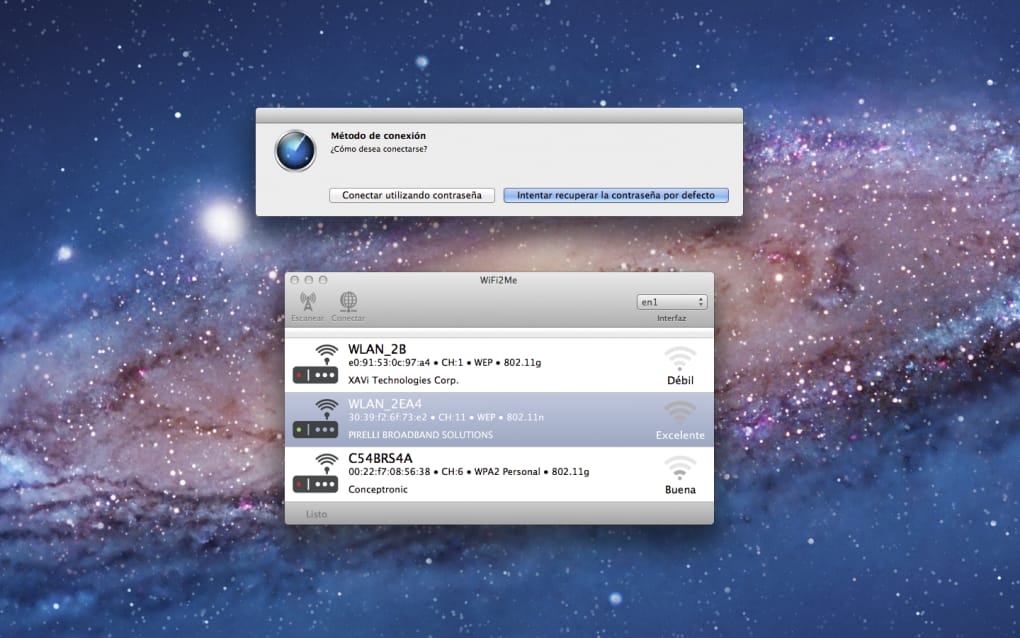
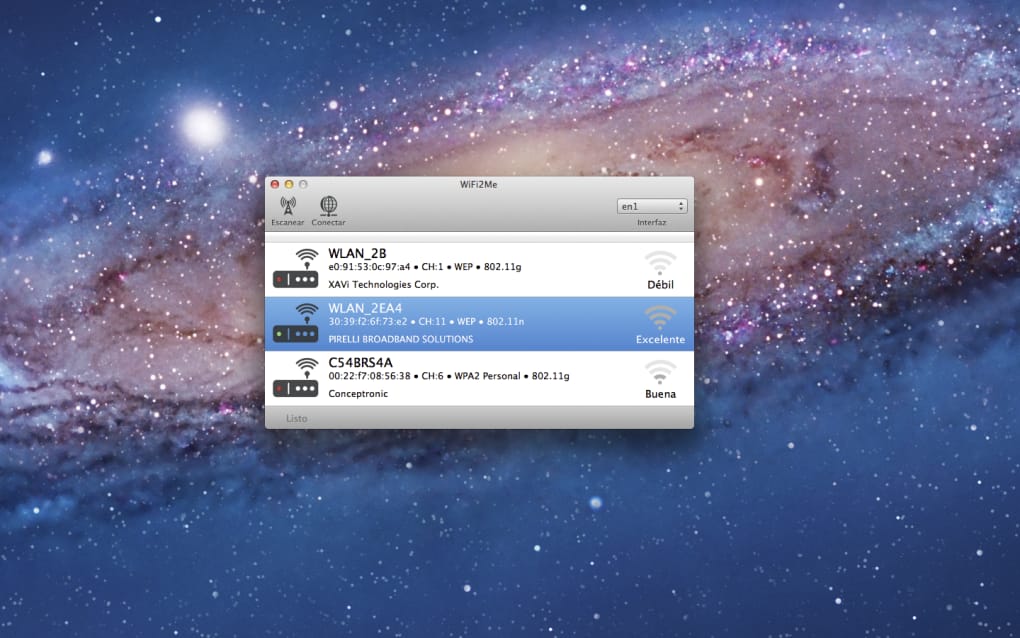
With the application open, you will see a single “Start Scan” button. Click it, and WiFi2Me will enumerate all reachable routers on your local network. The progress bar indicates how many devices have been examined.
When the target router is identified, the tool attempts to retrieve the stored default password. If successful, the password appears in a read‑only text field, which you can copy to your clipboard. The process typically takes under two minutes on a modern network.
Should the algorithm fail, the log file (accessible via the “View Log” button) provides detailed error codes that can be used for troubleshooting or for reporting a bug to the developers.
Compatible operating systems: Windows 10/11, macOS 10.13 and newer, Android 8.0 and newer, iOS 13 and newer.
Pros, Cons, and Frequently Asked Questions
Pros
- Free and completely functional without a paid license.
- Works offline, keeping your network data private.
- Simple one‑click interface reduces the learning curve.
- Supports the most common desktop and mobile platforms.
- Lightweight installer and minimal system resource usage.
Cons
- Only recovers default passwords; custom passwords set by users may not be accessible.
- Requires administrative privileges on Windows and macOS.
- Some newer router firmware versions may use encryption methods not yet supported.
- No built‑in password manager integration.
- Mobile versions have limited functionality compared to desktop counterparts.
FAQ
Can WiFi2Me recover passwords that I changed manually?
WiFi2Me is primarily designed to retrieve the router’s factory‑default password stored in the device’s firmware. If you have manually changed the password, the tool may not be able to decode it unless the router still retains the original default credentials in a backup configuration.
Is WiFi2Me safe to use on a corporate network?
Yes, the application runs locally and does not transmit any data to external servers. However, corporate policies often restrict network‑scanning tools, so you should obtain permission from your IT department before running WiFi2Me on a business network.
Do I need an internet connection to recover the password?
No. Once the software is installed, all scanning and decryption happen locally on your device. An internet connection is only required to download updates or the initial installer.
What should I do if WiFi2Me fails to find my router?
First, ensure that your device is connected to the same network segment as the router (e.g., not on a VPN or guest network). Then check the log file for error codes. If the problem persists, you can contact support through the official website and provide the log details for further assistance.
Is there a paid version with additional features?
Currently WiFi2Me is offered completely free of charge. The development team has indicated that future premium features may include password manager integration and batch processing for multiple routers, but these are not yet released.
WiFi2Me delivers exactly what it promises: a quick, free way to recover lost Wi‑Fi passwords without compromising security. Its simplicity makes it ideal for non‑technical users, while the cross‑platform support appeals to power users who need a consistent experience across devices. Although it cannot retrieve manually changed passwords, its ability to pull factory defaults remains invaluable for many scenarios. Overall, it earns a solid four‑star rating.
Conclusion & Call to Action
If you’ve ever stared at the Wi‑Fi lock icon wondering where that elusive password went, WiFi2Me is the tool you’ve been waiting for. It combines a no‑cost model, a clean interface, and robust offline security, making it a trustworthy companion for both home and small‑office environments. By downloading and installing WiFi2Me today, you can eliminate the guesswork and get back online in minutes. Don’t let a forgotten password keep you offline—download WiFi2Me now and experience hassle‑free password recovery.







